Find threats: Cloud credential theft on Linux endpoints
The Sumo Logic Threat Labs team previously outlined the risks associated with unprotected cloud credentials found on Windows endpoints.
Although workloads that support business functionality are increasingly moving to the cloud, these workloads are often managed from on-premises Linux endpoints.
Should they gain access to these on-premises endpoints, threat actors may be able to read and exfiltrate sensitive cloud credential material.
To protect your organization, you’ll want to follow along as we highlight the telemetry, tooling and hunting strategies necessary to detect and respond to cloud credential theft on Linux endpoints.
Threat hunting tools you’ll need to instrument your telemetry
To instrument the necessary telemetry required, we will be using a number of tools.
- A configuration and installation of auditd
- Instrumentation of auditd with a configuration file, we will be using Florian Roth’s auditd configuration as a baseline found here
- TruffleHog, which is a tool designed to find keys and other credential material on endpoints or in CI/CD pipelines
- A custom script provided by the Threat Labs team which takes TruffleHog output and adds it to an existing auditd configuration
- In order to make the auditd logs easier to work with, we will also be using Laurel
The Sumo Logic Threat Labs team recently released a new set of mappers and parsers for Laurel Linux Logs.
Cloud SIEM Enterprise users can take advantage of this new functionality, in addition to support for Sysmon for Linux telemetry.
Making sense of the generated telemetry
Examining the various tooling outlined above, it is evident that there are a lot of moving pieces involved in instrumenting telemetry for cloud credential theft detection on Linux.
In order to untangle these pieces and illustrate how they work together, let us look at an example.
Our example endpoint is used by a cloud administrator, or cloud developer. This system accesses Amazon Web Services (AWS), Google Cloud Platform (GCP), and Microsoft Azure resources via the respective command line tools.
On this endpoint, we want to find where these CLI tools store their authentication material.
Here, TruffleHog can help us, via the following command:
trufflehog filesystem --directory /home/ubuntu/ --jsonThis command assumes that the CLI tools outlined above were installed with the default options, into the home directory of the user “ubuntu”.
After running the command, we see that TruffleHog managed to find our AWS credential material.

We can save this TruffleHog output to a JSON file, and use a script to automate the addition of TruffleHog entries into our auditd configuration.

The script will parse the TruffleHog output by utilizing the jq utility and will add the entries to our auditd configuration file.

Here is the script. It is provided to the community for free use and modification without any support:
#!/bin/bash
# Color variables
red='\033[0;31m'
green='\033[0;32m'
yellow='\033[0;33m'
blue='\033[0;34m'
magenta='\033[0;35m'
cyan='\033[0;36m'
# Clear the color after that
clear='\033[0m'

if [ $# -eq 0 ]; then
    echo -e "${red}No arguments supplied, need to provide a path to the output of Trufflehog, in JSON format${clear}"
    echo -e "${red}To generate the JSON file, run: trufflehog filesystem -j --directory [directory path that you want to scan] > results.json${clear}"
    echo -e "${red}After the results.json file is generated, run: ./trufflehog2auditd.sh results.json${clear}"
else
    # Package checking logic
    REQUIRED_PKG="jq"
    PKG_OK=$(dpkg-query -W --showformat='${Status}\n' $REQUIRED_PKG | grep "install ok installed")
    echo -e "${magenta}Checking for $REQUIRED_PKG: $PKG_OK${clear}"
    if [ "" = "$PKG_OK" ]; then
        echo -e "${green}No $REQUIRED_PKG. Setting up $REQUIRED_PKG.${clear}"
        sudo apt-get --yes install $REQUIRED_PKG
    fi

    for files in $(cat $1 | jq -r '.SourceMetadata.Data.Filesystem.file' | uniq); do
        # Format we want: -w /file_path_with_creds.txt -p r -k file_with_creds
        echo -e "${yellow}Adding $files to Auditd Rules${clear}"
        echo "-w $files -p r -k sensitive_cloud_cred" >> /etc/audit/rules.d/audit.rules
    done

    echo -e "${green}Done Adding entries, restarting auditd...${clear}"
    sudo systemctl restart auditd
    echo -e "${cyan}All done..${clear}"
fi
As a test, we can try to cat or read the file containing our Ubuntu credentials.

And if we check our Laurel logs, we should see an entry similar to this.
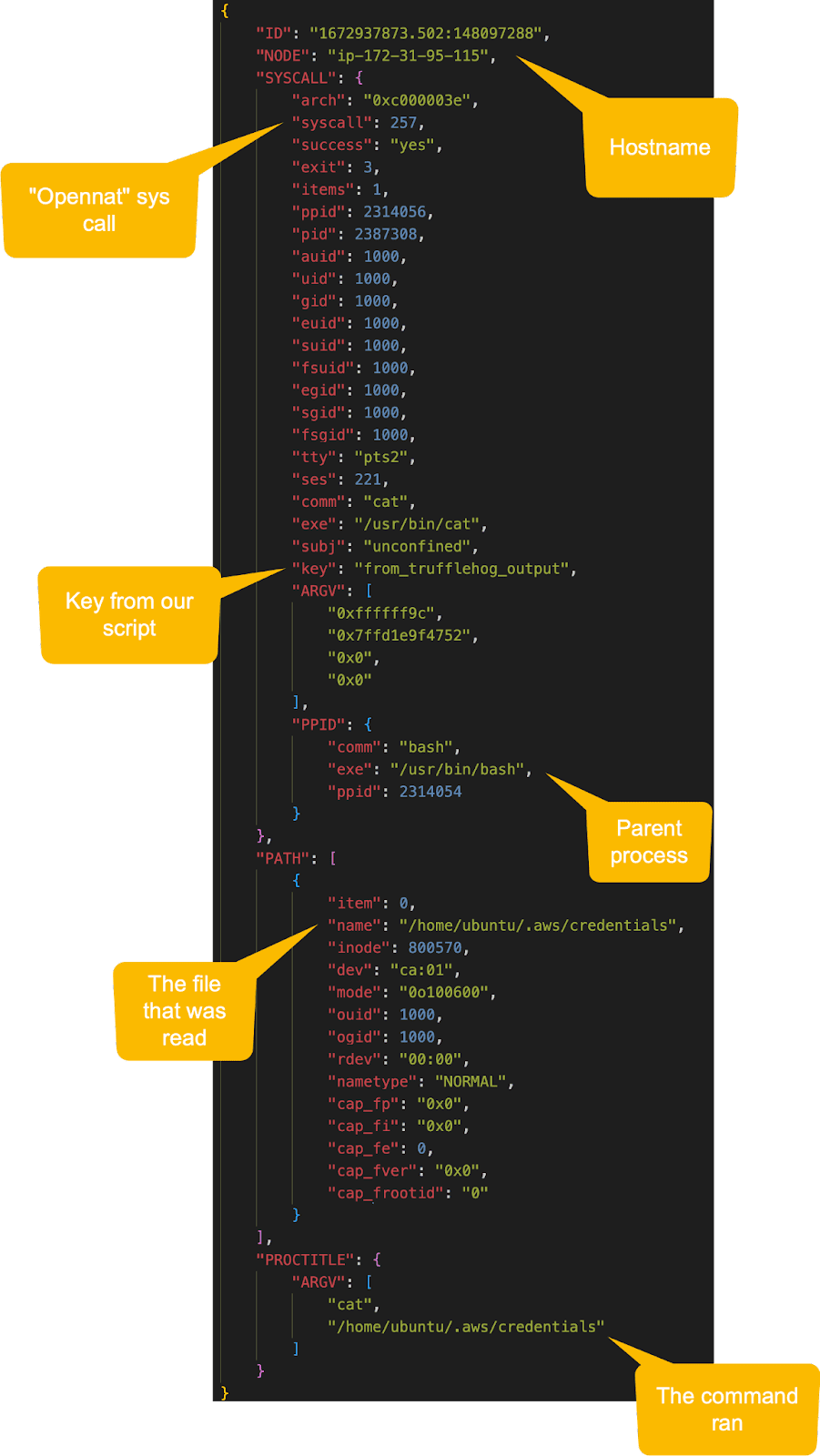
We can see from this event which file was read, what command was used to read the file, and which process performed the read operation.
These are all critical items that we will use to build our hunting hypothesis, baselining and alerting strategies.
It should be noted that in our testing, TruffleHog did not identify Google Cloud or Azure keys.
This table outlines where you can find these keys to help add these entries into your auditd configuration:
| Service | Credential Material Location | Auditd Entry |
|---|---|---|
| Azure CLI | /home/ubuntu/.azure/msal_token_cache.json | -w /home/ubuntu/.azure/msal_token_cache.json -p r -k sensitive_cloud_cred |
| Azure CLI | /home/ubuntu/.azure/msal_token_cache.bin | -w /home/ubuntu/.azure/msal_token_cache.bin -p r -k sensitive_cloud_cred |
| Google Cloud | /home/ubuntu/.config/gcloud/access_tokens.db | -w /home/ubuntu/.config/gcloud/access_tokens.db -p r -k sensitive_cloud_cred |
| Google Cloud | /home/ubuntu/.config/gcloud/credentials.db | -w /home/ubuntu/.config/gcloud/credentials.db -p r -k sensitive_cloud_cred |
| Google Cloud | /home/ubuntu/.config/gcloud/legacy_credentials/{{Username}}/adc.json | -w /home/ubuntu/.config/gcloud/legacy_credentials/{{Username}}/adc.json -p r -k sensitive_cloud_cred |
Baselining
At this point, we have instrumented our Linux host with the necessary telemetry and have identified where our cloud credentials are stored.
The next step is to follow the data to determine what Linux processes access our sensitive cloud credentials under normal circumstances.
We can accomplish this by looking at the following Sumo Logic query:
_index=sec_record_audit metadata_product = "Laurel Linux Audit" metadata_deviceEventId = "System Call-257"
| %"fields.PATH.1.name" as file_accessed
| where file_accessed matches /(.aws\/|\.azure\/|\.config\/gcloud\/)/
| count by baseImage, file_accessed
Looking at our results, by navigating to the “Aggregation” tab in Sumo CIP and clicking the “Donut” chart, we can see the following:
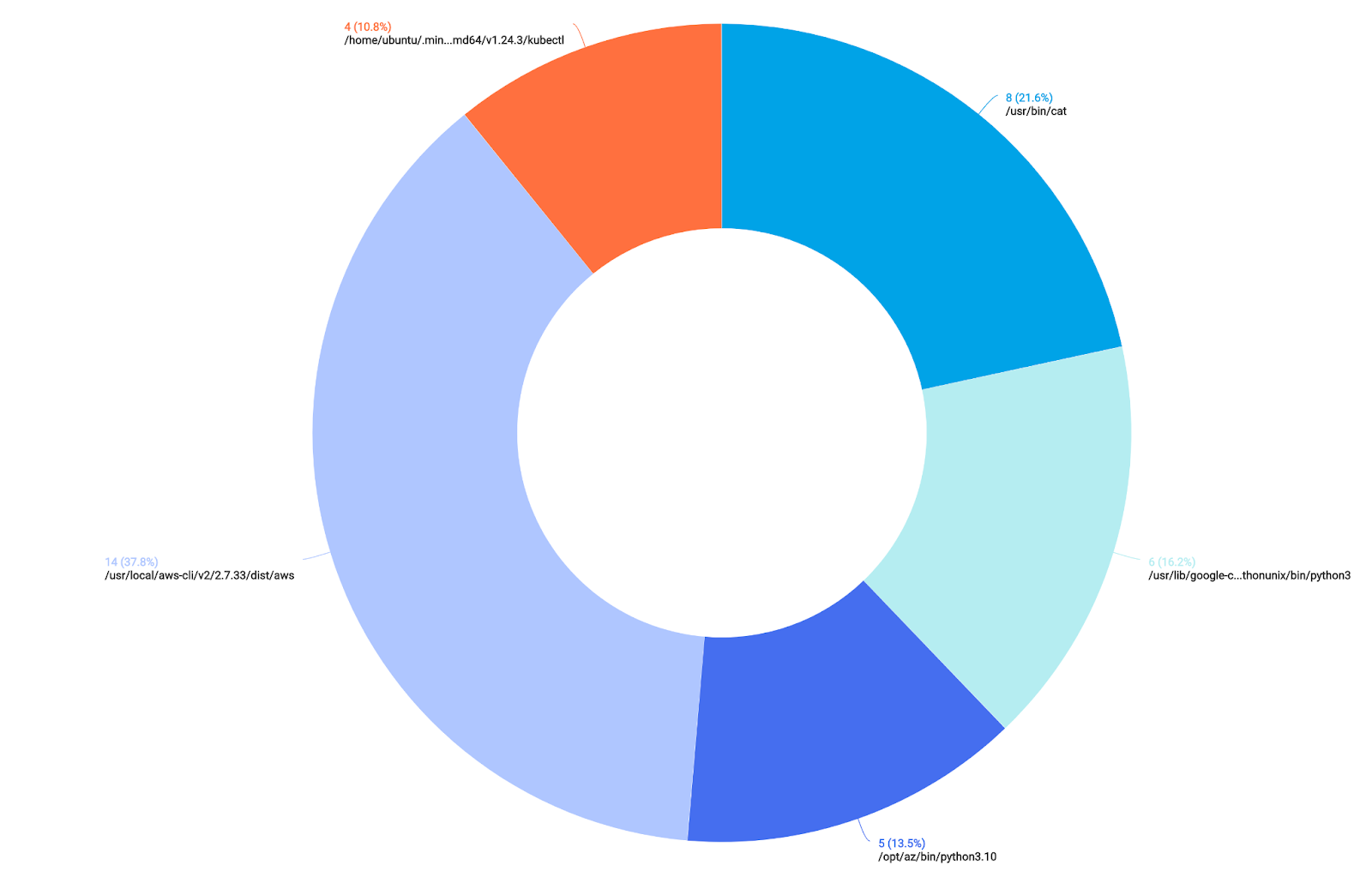
We can see some Python processes accessing our credential material, as well as some recognizable utilities such as “cat” and “less”.
All the pieces are now in place for us to look at some hunting strategies.
Hunting
In order to generate some malicious or abnormal data, we will be using the incredibly powerful Mythic C2 Framework, utilizing the Poseidon payload.
We can instruct our command and control agent to read files containing our sensitive cloud credentials.
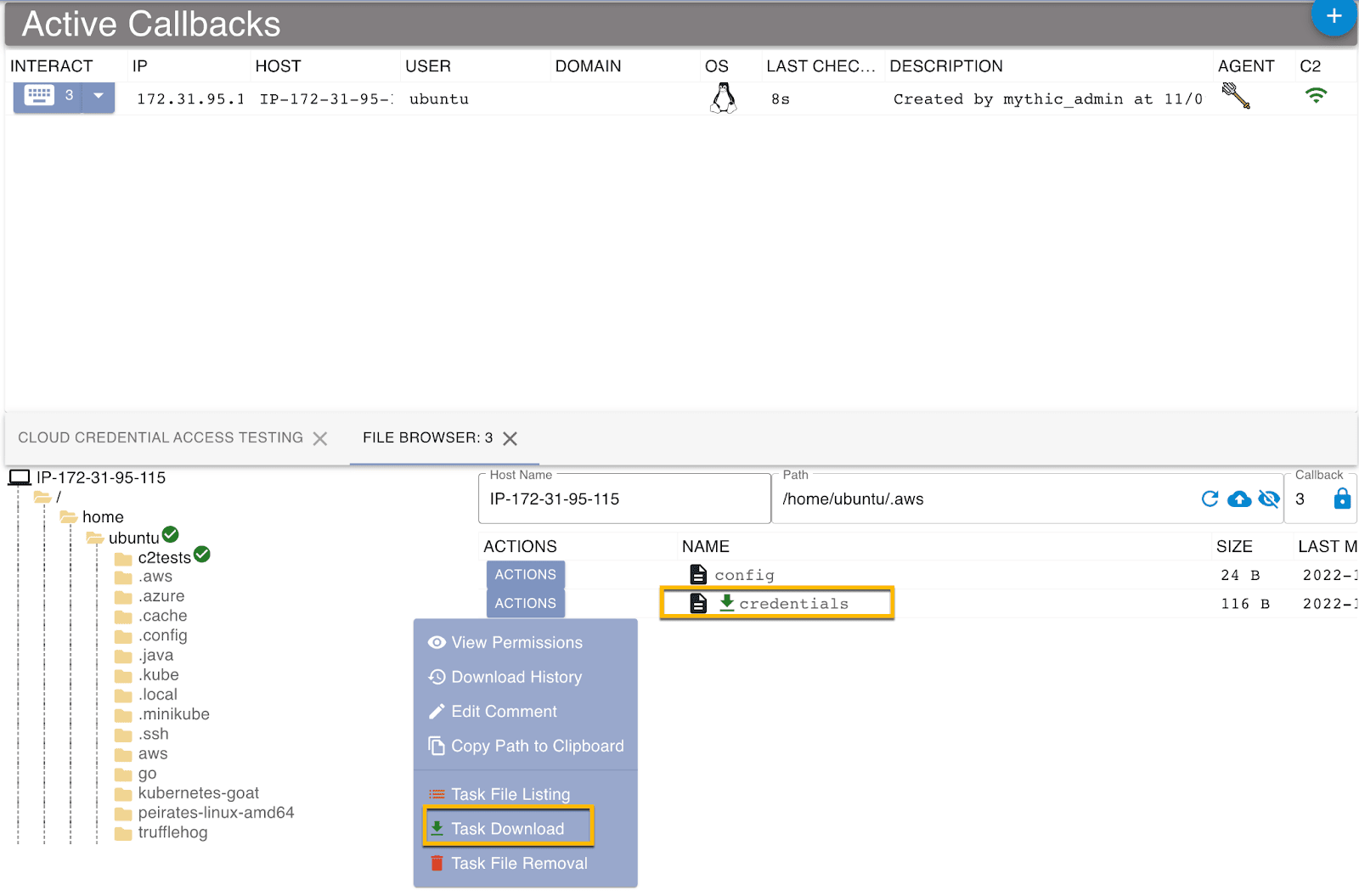
Now that we have generated some malicious activity, let’s take a look at our data again, with the same query as before:
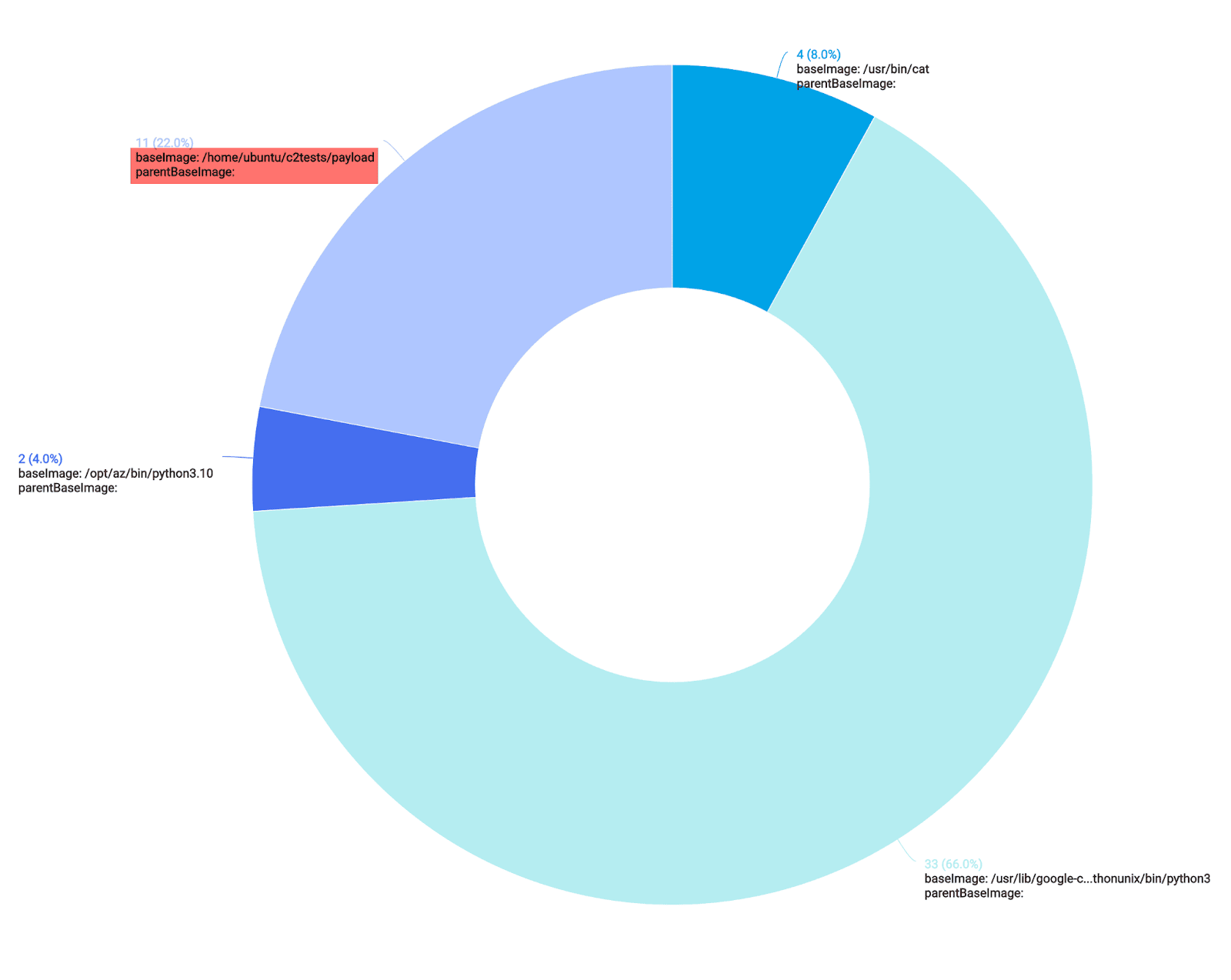
This time around, we notice a new process accessing our sensitive cloud credentials (highlighted in red). This process is our Poseidon C2 agent, which is running in the /home/ubuntu/ directory.
We now have our telemetry set up, in addition to a baseline and some “malicious” activity.
As a next step, let’s bubble up this malicious activity using qualifier queries.
_index=sec_record_audit metadata_product = "Laurel Linux Audit" metadata_deviceEventId = "System Call-257"
| 0 as score
| "" as messageQualifiers
| %"fields.PATH.1.name" as file_accessed
| where file_accessed matches /(.aws\/|\.azure\/|\.config\/gcloud\/)/

// First qualifier, if the base image contains a legitimate Google Cloud tool
| if(baseImage matches /(google-cloud-sdk)/, concat(messageQualifiers, "Legit Gcloud CLI Use: ", baseImage, "\nBy Parent Image: ", parentBaseImage, "\n# score: 3\n"), messageQualifiers) as messageQualifiers

// Second qualifier, if the base image contains a legitimate Azure CLI tool
| if(baseImage matches /(opt\/az\/bin\/python)/, concat(messageQualifiers, "Legit Azure CLI Use: ", baseImage, "\nBy Parent Image: ", parentBaseImage, "\n# score: 3\n\n"), messageQualifiers) as messageQualifiers

// Third qualifier, if the base image contains a legitimate AWS CLI tool
| if(baseImage matches /(\/usr\/local\/aws-cli)/, concat(messageQualifiers, "Legit AWS CLI Use: ", baseImage, "\nBy Parent Image: ", parentBaseImage, "\n# score: 3\n\n"), messageQualifiers) as messageQualifiers

// Fourth qualifier, if the base image contains the "cat" binary
| if(baseImage matches /(\/usr\/bin\/cat)/, concat(messageQualifiers, "Manual Cat of Cloud Creds: ", baseImage, "\nBy Parent Image: ", parentBaseImage, "\n# score: 30\n\n"), messageQualifiers) as messageQualifiers

// Final qualifier, if the process accessing our cloud credentials is in the home directory, label it suspicious
| if(baseImage matches /(\/home\/)/, concat(messageQualifiers, "Suspicious Cred Access: ", baseImage, "\nBy Parent Image: ", parentBaseImage, "\n# score: 60\n\n"), messageQualifiers) as messageQualifiers

// Concat all the qualifiers together
| concat(messageQualifiers) as q
| parse regex field=q "score:\s(?<score>-?\d+)" multi
| where !isEmpty(q)
| values(q) as qualifiers, sum(score) as score by _sourceHost
// Can add a final line to filter results further
// | where score > {{Score Number}}
The returned results found in the screenshot below are organized into three distinct categories, legitimate cloud CLI use, manual cat of cloud credentials, and suspicious credential access:
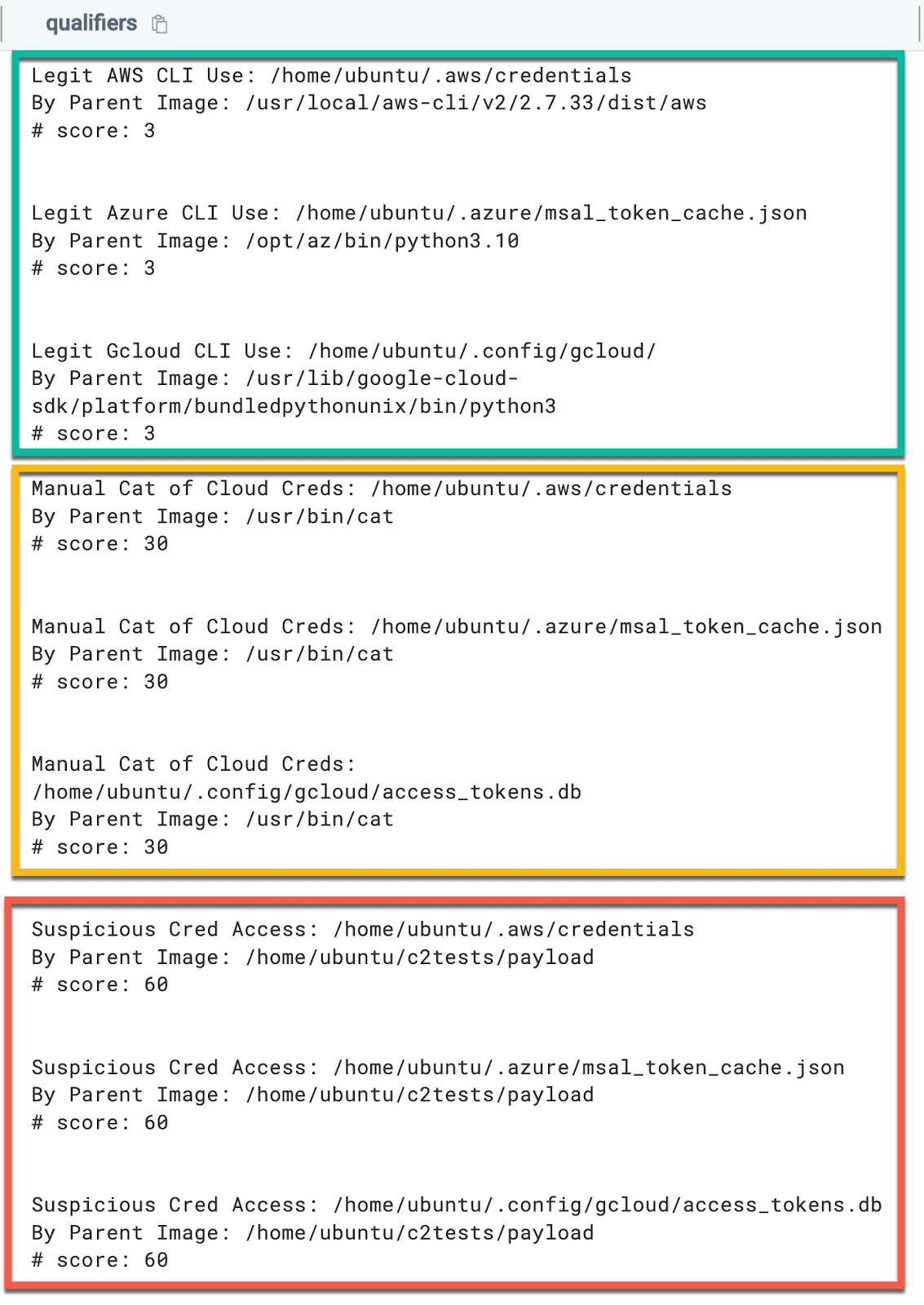
The above query is designed to flag on exfiltration or other types of access of cloud credential material from a Linux endpoint.
The query is not designed to flag on scenarios where a threat actor may be present on a system and is using the legitimate cloud CLI tools to interact with cloud resources.
The query can also be tweaked, with additional paths and qualifiers added and scores changed, depending on the environment.
If you followed along with this article, you instrumented a Linux host with telemetry that generates file access events, baselined normal activity, and hunted for anomalous or malicious cloud credential access.
Final thoughts
As previously outlined, cloud credential material found unprotected on endpoints presents an attractive target for threat actors.
Now you know how to help narrow this visibility gap.
CSE rules
The threat labs team has developed and deployed the following rules for Cloud SIEM Enterprise customers.
| Rule ID | Rule Name |
|---|---|
| MATCH-S00841 | Suspicious AWS CLI Keys Access on Linux Host |
| MATCH-S00842 | Suspicious Azure CLI Keys Access on Linux Host |
| MATCH-S00843 | Suspicious GCP CLI Keys Access on Linux Host |
MITRE ATT&CK mapping
| Name | ID |
|---|---|
| Steal Application Access Token | T1528 |
| Unsecured Credentials: Credentials In Files | T1552.001 |
| Unsecured Credentials: Private Keys | T1552.004 |
References
- https://man7.org/linux/man-pages/man8/auditd.8.html
- https://github.com/Neo23x0/auditd
- https://github.com/threathunters-io/laurel
- https://github.com/Sysinternals/SysmonForLinux
- https://github.com/Azure/azure-cli
- https://cloud.google.com/sdk/docs/install
- https://docs.aws.amazon.com/cli/latest/userguide/getting-started-install.html
- https://www.baeldung.com/linux/auditd-monitor-file-access